
The Overview has five panels beside and under the map. Each of them can show what you need to see most.
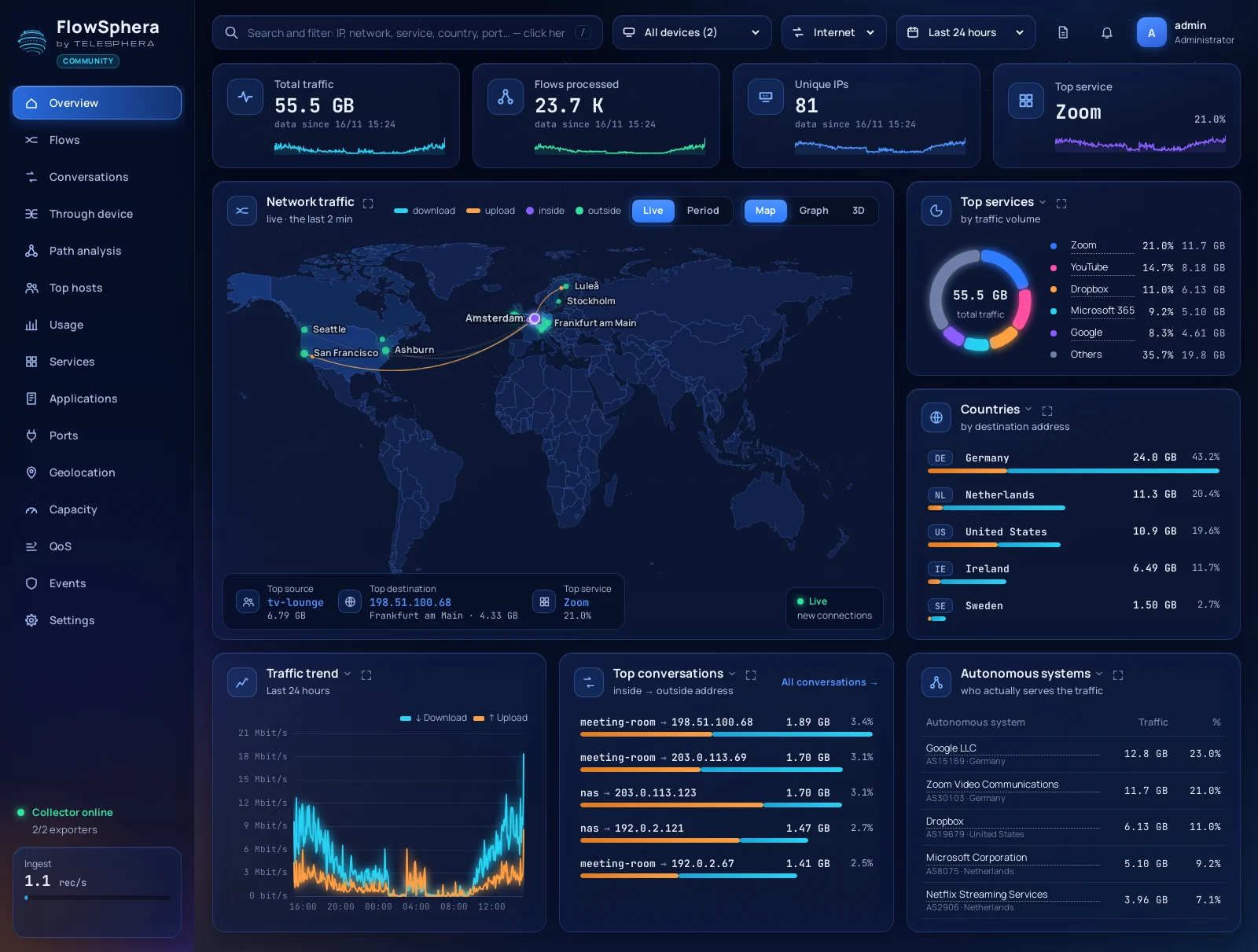
1. Click the panel's title
A small arrow beside each title says it can be changed. Click the title and pick what the panel shows:
- Top services and Top hosts — the usual pair;
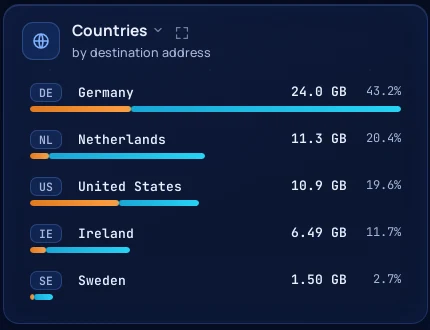
- Countries — where the traffic goes, with the share of each;
- Autonomous systems — who actually serves it: Google, Microsoft, a CDN, your provider;
- Top conversations, Recent flows, Traffic trend.
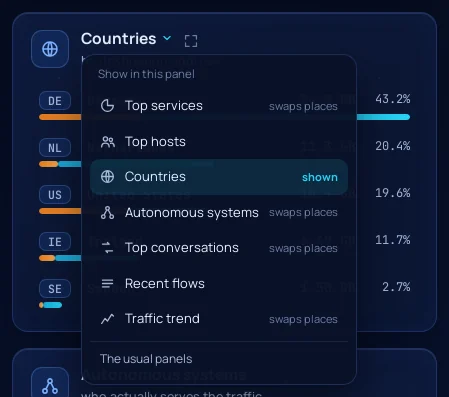
A kind already shown in another panel changes places with it. The usual panels at the bottom brings the original layout back.
2. It stays with you
The choice is kept with your account: the next time you sign in — from any browser — the Overview looks the same. Other users keep their own.
3. On a wall screen
The panels travel in the page link too (ov=…). Arrange the Overview, add kiosk=1 to the address and start the
screen's browser with it:
https://flowsphera.example:3030/#v=overview&kiosk=1&ov=services,countries,trend,conv,asnThe screen shows those panels even when it is signed in with its own Viewer account. In kiosk mode the titles are plain text: nobody changes the wall by a stray click. At 1920×1080 a browser zoom of 90 % fits the whole Overview, as long as the Traffic trend stays in the bottom row.
Tips
- Watching one country? An event is better than a glance: write your own rule, e.g.
country:RU dir:upabove 100 MB in an hour, and it reaches Telegram. - A click on a country or an autonomous system filters every page by it.
Next: FlowSphera on a wall screen · your own event rules.
Questions
Does my choice change the Overview of other users?
No. It is kept with your account; every user arranges their own. A link carries its panels with it.
Can a panel show the same thing twice?
No: a kind already shown in another panel changes places with it.