
FlowSphera checks your flows every 10 minutes for the things worth knowing: port scans, password guessing on SSH, RDP and management ports, floods and DDoS against your usual peak, inside hosts that scan, contact with addresses on reputation lists, sustained uploads, new countries, links near their capacity and devices that stopped exporting.
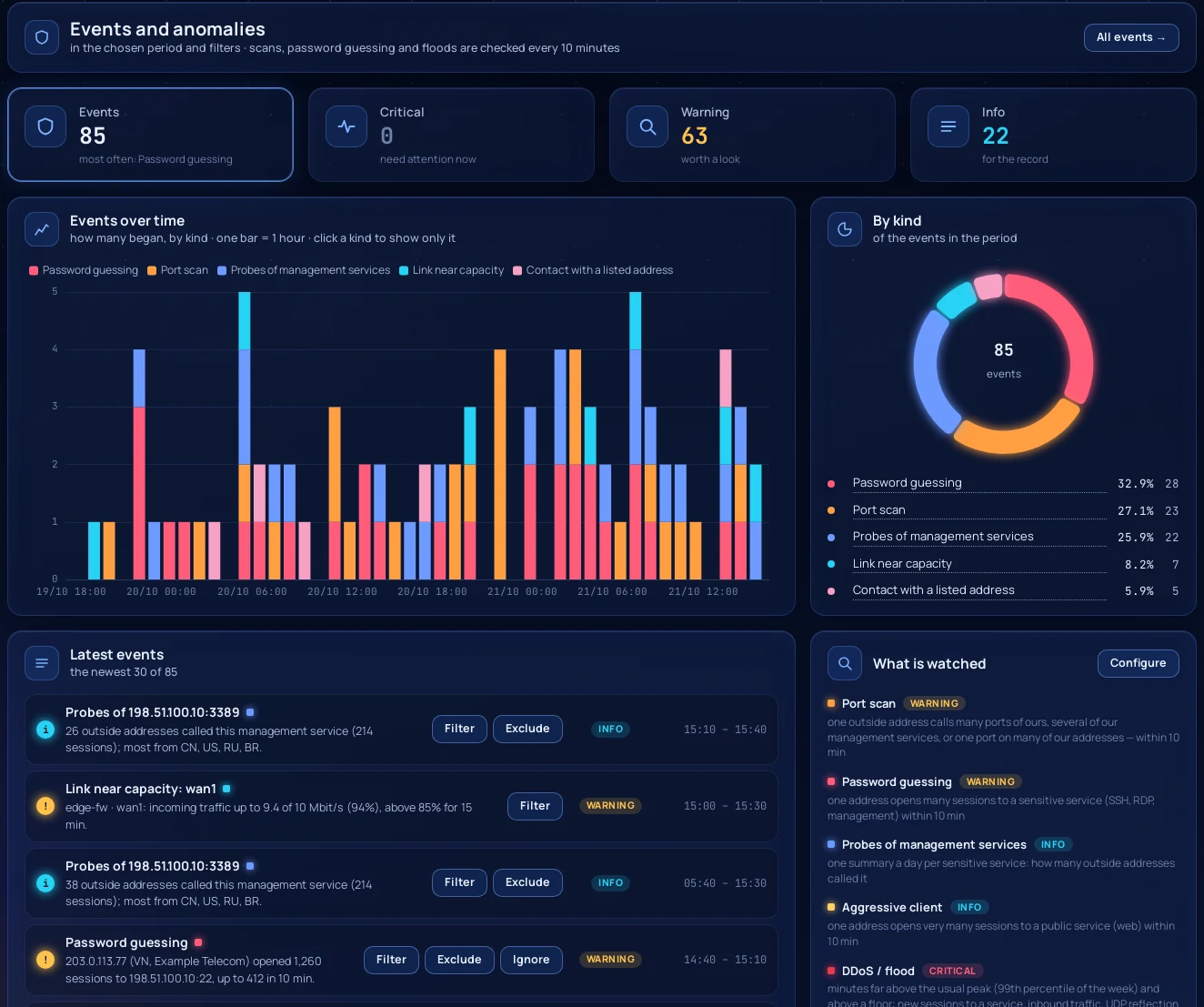
1. Read the picture first
The cards count the events of each priority — critical, warning, info. Events over time stacks them by kind; By kind shows the share of each. Click a priority card or a kind and the chart, the ring and the list follow it.
2. See who is behind them
By host gives each host with the most events a lane of its own: its name when FlowSphera knows it, otherwise the address, with the country for outside ones. A bar in the kind's colour marks each stretch of time its events ran, so a scanner that came back three times or a laptop that keeps calling a listed address stands out at once.
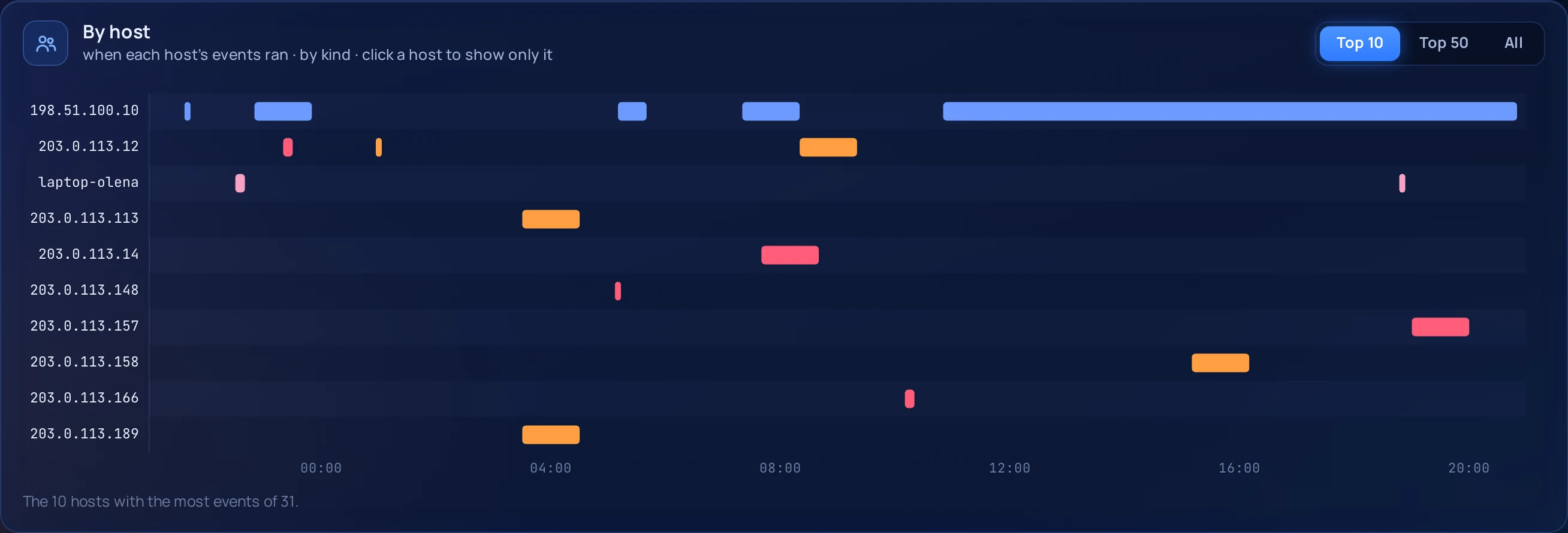
- Top 10 / Top 50 / All — how many hosts to show; All draws up to 200, the busiest first.
- The chosen priority or kind applies here too: click Contact with a listed address in By kind and the lanes show only the machines that did it, and when.
- Click a host (or one of its bars) — every page then shows only that host's traffic and events.
The same lanes, for the ten busiest hosts, are in the Security events part of every PDF report.
3. Act on an event
Every event in Latest events has buttons:
- Filter — every page shows the traffic of that event, down to the records.
- Exclude — this connection in this direction is not reported again (a nightly backup to a server of yours).
- Ignore — no events at all about this address, network or ASN (your own vulnerability scanner).
All events → pages through every event with a search by address or text.
4. Tune what is watched
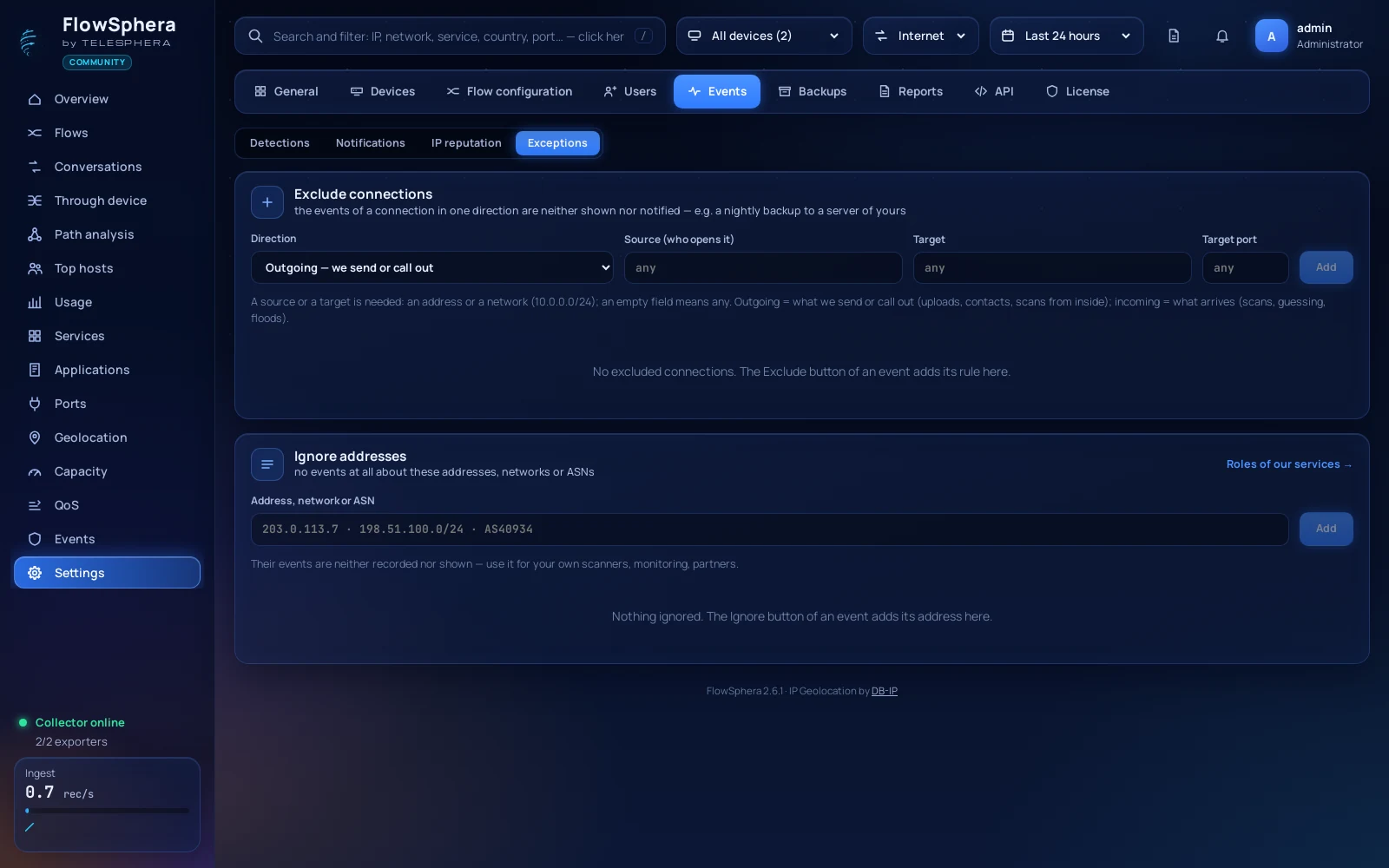
What is watched → Configure opens Settings → Events → Detections: each kind on or off, its priority, its thresholds and the channels it goes to. Excluded connections and ignored addresses are listed in Settings → Events → Exceptions, where they can be removed again.
Why busy web sites stay quiet
NetFlow does not say who opened a connection. FlowSphera works it out, and learns which of your services are public, so thousands of visitors to your web site are not reported as a scan.
Your own rules
What matters on your network — a backup that must stay below 500 MB, RDP that should never come from abroad — is a rule of your own: filters as in the search box and a threshold. See your own event rules.
Next: contact with malicious addresses, Telegram and e-mail, webhooks and SIEM.
Questions
How fast does an event appear?
The flows are checked every 10 minutes; an event appears in that window and goes to your notification channels at once.
Can an event grow?
Yes: one event per source grows while it goes on, instead of a new one every 10 minutes.
Are events in the PDF reports?
Yes, the same two charts open the «Security events» part of every report.