
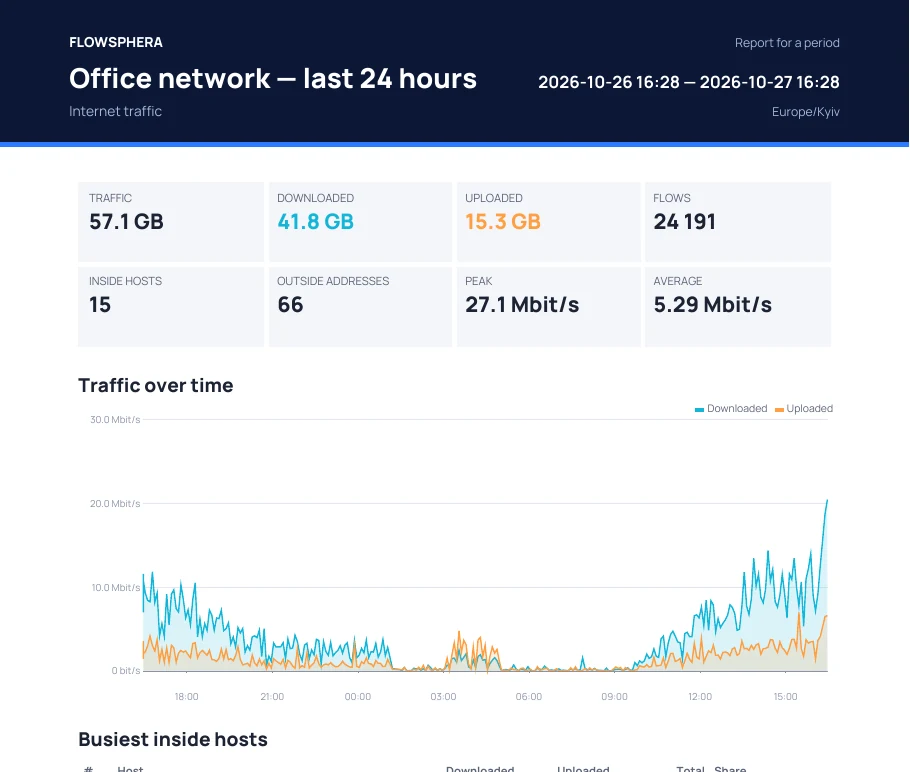
A report is a PDF of the traffic over a period: totals against the period before, traffic over time, the busiest hosts, outside networks, conversations and the new ones, applications, services, countries, ports, your networks, usage of every host, traffic classes, interface load, link capacity, security events and the devices.
1. Set up the mail server
Reports go by e-mail through your SMTP server — set it once in Settings → General → Mail server (see E-mail, webhook, SIEM). Without it a report can still be saved and downloaded.
2. Create a report
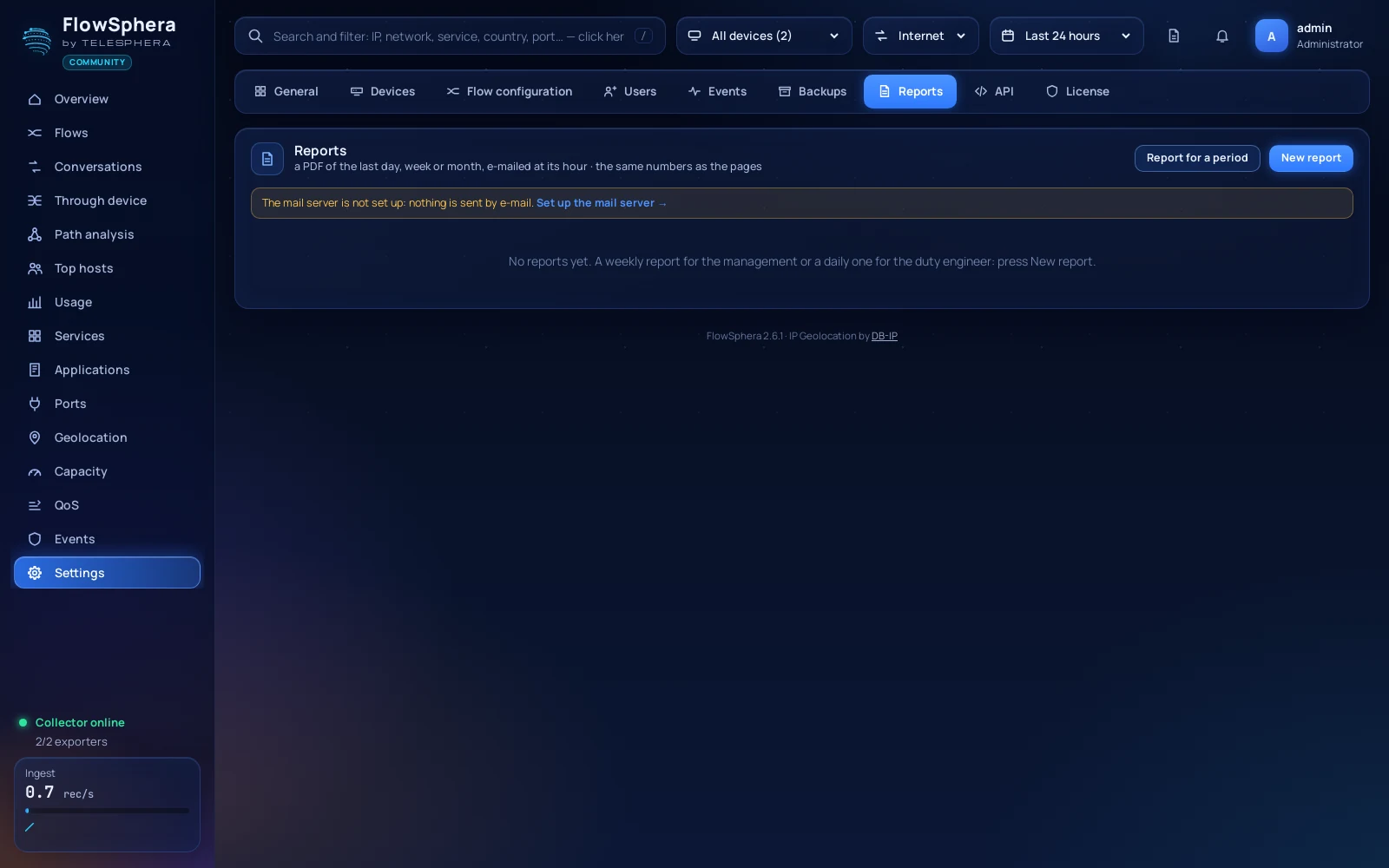
Open Settings → Reports → New report:
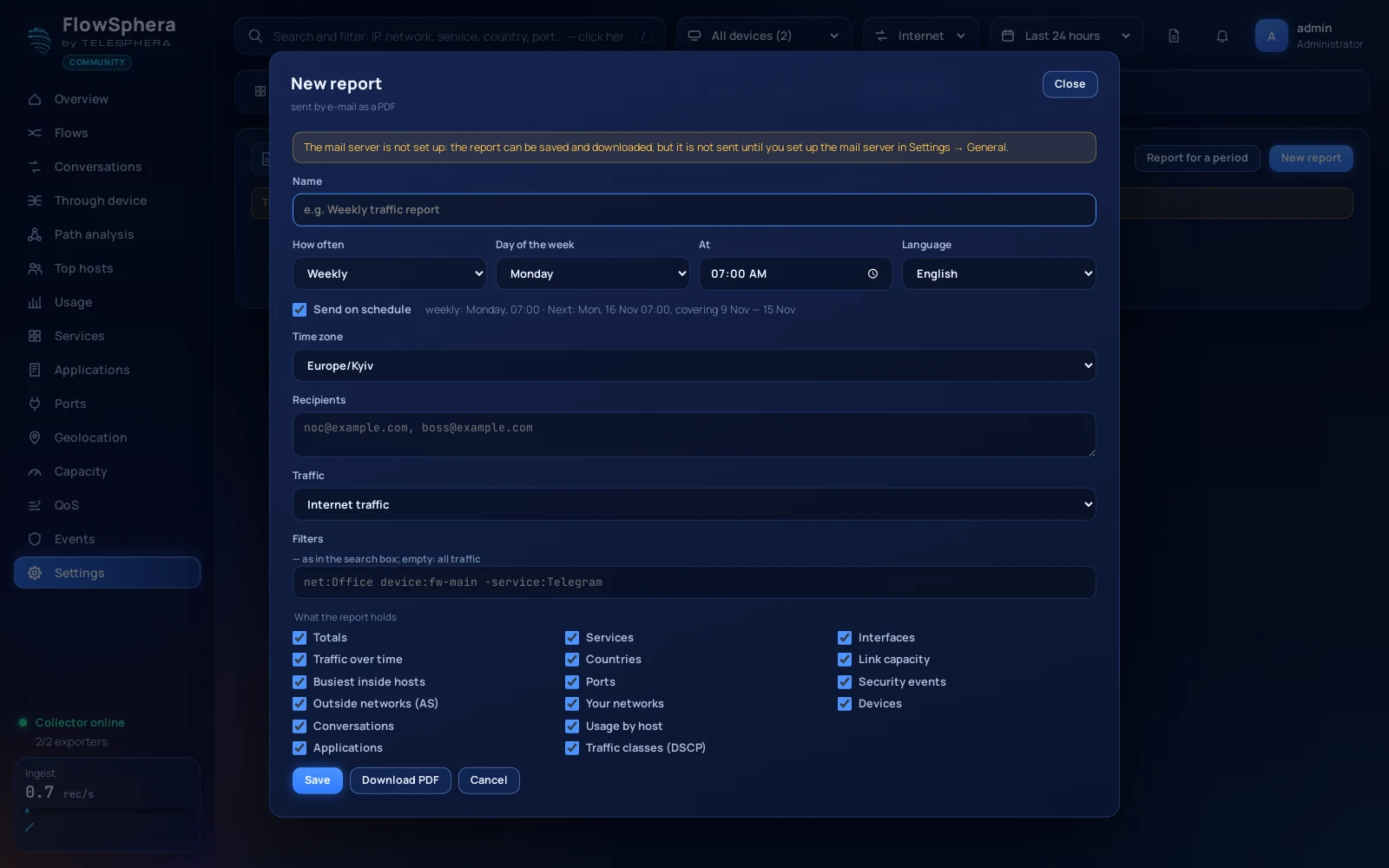
- Name — the subject of the letter.
- How often — daily, weekly (the day of the week) or monthly (the day of the month), at the hour you choose, in the report's time zone. A weekly report covers Monday to Sunday, a monthly one the whole month.
- Language — English or Ukrainian.
- Recipients — comma-separated.
- Traffic and Filters — the same as the search box:
net:Officemakes a report of one office. - What the report holds — tick the parts you want.
Download PDF shows the report right away; Save schedules it.
3. A report for any period
After an attack or an outage: set the period and the filters on screen and press the report button at the top of any page (or Report for a period in Settings → Reports) — the PDF holds exactly what you see.
Questions
What if the server was off when a report was due?
FlowSphera sends it when it is back, and retries a failed send every 15 minutes for two hours.
What if part of the period has no data?
The report says so at the top — when the records begin or end — instead of showing zeros.